HTML Tags and Elements: The Simple Guide to Building Your Web Skeleton

If you’ve ever looked at a website and wondered how it’s put together, you’re in the right place. Every single website you visit—from the biggest social media site to the smallest personal blog—is built on a foundation called HTML.
Don't get intimidated by the fancy name—HyperText Markup Language. To keep it simple: if a website was a person, HTML would be the skeleton. It's the framework that holds everything up. It tells the browser, "Hey, this is a heading, this is a paragraph, and here's where a picture goes." Without it, your website would just be a big pile of messy text with no order.
We use HTML because it's the universal language for structuring content on the web. It's how we organize information so that browsers (like Chrome or Firefox) and search engines can understand what's what.
The Big Question: What's the Difference Between a Tag and an Element?
This is the one thing that confuses almost everyone when they start. Let's clear it up with a simple analogy.
Imagine you are building a house, and you have a bunch of empty cardboard boxes.
1. What is an HTML Tag? (The Labels)
A tag is like the label you write on the outside of an empty box. It tells you what kind of content is supposed to go inside.
In HTML, a tag is just a keyword wrapped in angle brackets, like this: <p> or <h1>.
• The <p> tag is the label for a paragraph box.
• The <h1> tag is the label for a main heading box.
Most tags come in pairs: an opening tag and a closing tag. The closing tag has a forward slash / in it to signal "This box is now closed."
Part | Example | Analogy |
Opening Tag | <p> | The label on the front of the box. |
Content | This is my first paragraph. | The stuff you put inside the box. |
Closing Tag | </p> | The label on the back, sealing the box. |
2. What is an HTML Element? (The Whole Box)
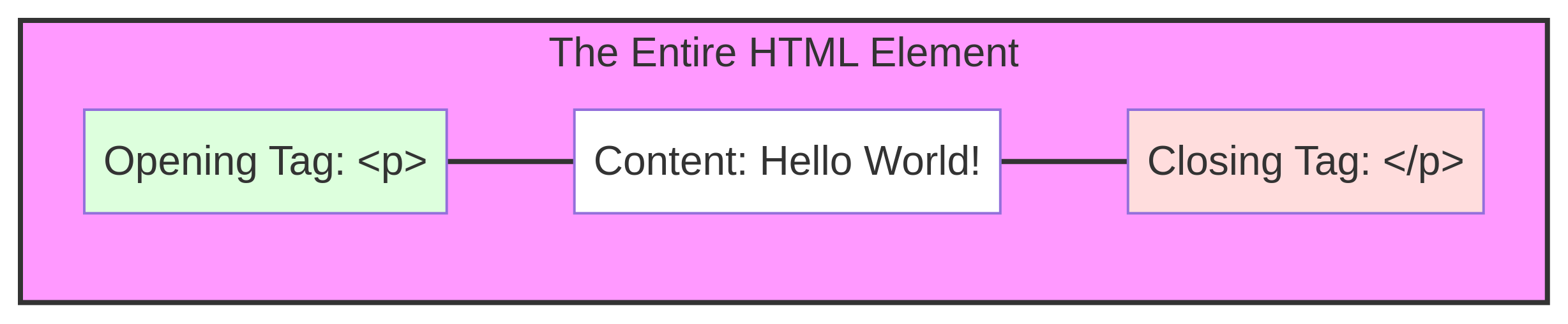
An element is the entire package. It's the opening tag, the content inside, and the closing tag, all wrapped up together.
HTML Code: <p>This whole thing is an element.</p>
So, the element is the whole package. It’s the labeled box with the stuff actually inside it. When people talk about "adding an element" to a page, they mean the whole thing, not just the tags.
Here is a simple visual breakdown:
The Special Case: Self-Closing (Void) Elements
Not all boxes need a closing lid! Some elements are like single-item labels or markers that don't wrap around any content. These are called self-closing or void elements.
Think of them as a single instruction card. They do their job and don't need a separate closing tag.
The most common examples are:
• : This is a line break. It's like hitting the "Enter" key on your keyboard. It just creates space and doesn't wrap any text.
• <img>: This is for an image. It points to a picture file and displays it. The content (the picture itself) is external, so it doesn't need a closing tag.
How Elements Behave: Block vs. Inline
Now that we know how to make elements, we need to know how they act on the page. HTML elements fall into two main categories, and they behave very differently, like two types of people in a crowd.
1. Block-Level Elements (The Space Hogs)
A block-level element is basically a space hog. It doesn't like sharing its row. It always:
• Starts on a brand new line.
• Stretches out to take the full width, even if the text inside is just one word.
Analogy: Think of a block element as a big, full-width banner or a new paragraph in a book. Once it's placed, nothing else can sit next to it; the next thing has to start below it.
Common Examples:
• <h1> to <h6>: Headings
• <p>: Paragraphs
• <div>: A generic container for grouping other elements (the most common "box")
2. Inline Elements (The Team Players)
An inline element is a team player. It only:
Takes up as much width as its content needs.
Sits right next to other inline elements on the same line.
Analogy: Think of an inline element as a single word or phrase you might highlight in a sentence. It doesn't break the flow of the text.
Common Examples:
• <span>: A generic container for a small piece of text (like a single word)
• <a>: Links (the text you click on)
• <strong> or <b>: Bold text
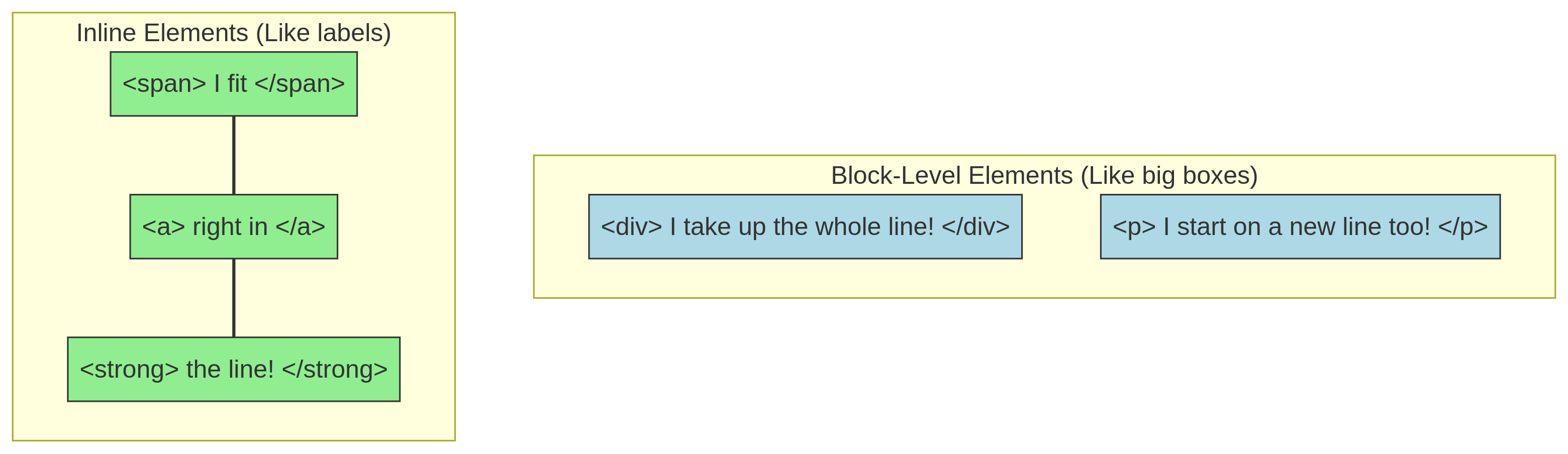
Here is a visual representation of how they lay out on the page:
Your Starter Kit: Commonly Used HTML Tags
To get you started, here are the tags you'll use every single day:
Tag | What it is | Real-Life Analogy | Simple Example |
<h1> to <h6> | Headings (from biggest to smallest) | Chapter titles and section headers in a book. | <h1>Main Title</h1> |
<p> | Paragraph | A standard paragraph of text. | <p>This is a sentence.</p> |
<div> | Division / Container (Block) | A big, empty room you can fill with furniture (other elements). | <div>...</div> |
<span> | Span / Container (Inline) | A highlighter marker used on a single word or phrase. | <span>Important</span> |
<a> | Anchor (Link) | A signpost that directs you to another location (webpage). | <a href="url">Click Me</a> |
<img> | Image (Self-Closing) | A picture frame hanging on the wall. | <img src="photo.jpg"> |
Pro Tip: Become a Web Detective
The best way to learn HTML is to look at what others have built. Every modern browser has a secret tool that lets you peek at the skeleton of any website.
Try this right now:
Go to any website you like.
Right-click on a piece of text or an image.
Select "Inspect" or "Inspect Element."
A panel will pop up, showing you the raw HTML code. You'll see all the <div>s, <p>s, and <h1>s that make up the page. It’s like looking at the blueprints of a building while standing inside it!
Keep your examples short, keep practicing, and remember: HTML is just about putting the right labels on the right boxes. Happy coding!


